1
Plug in your iPhone
Unlock it and tap Trust.
 PhotoShelffor Mac
You already organized your photos into albums on your phone. Why dump them all in a mess on your hard-drive?!
With PhotoShelf your albums become folders.
€9.99 one-time purchase, not a subscription.
Works on any Mac (Intel or Apple Silicon) with macOS 11 Big Sur or newer.
Unlock it and tap Trust.
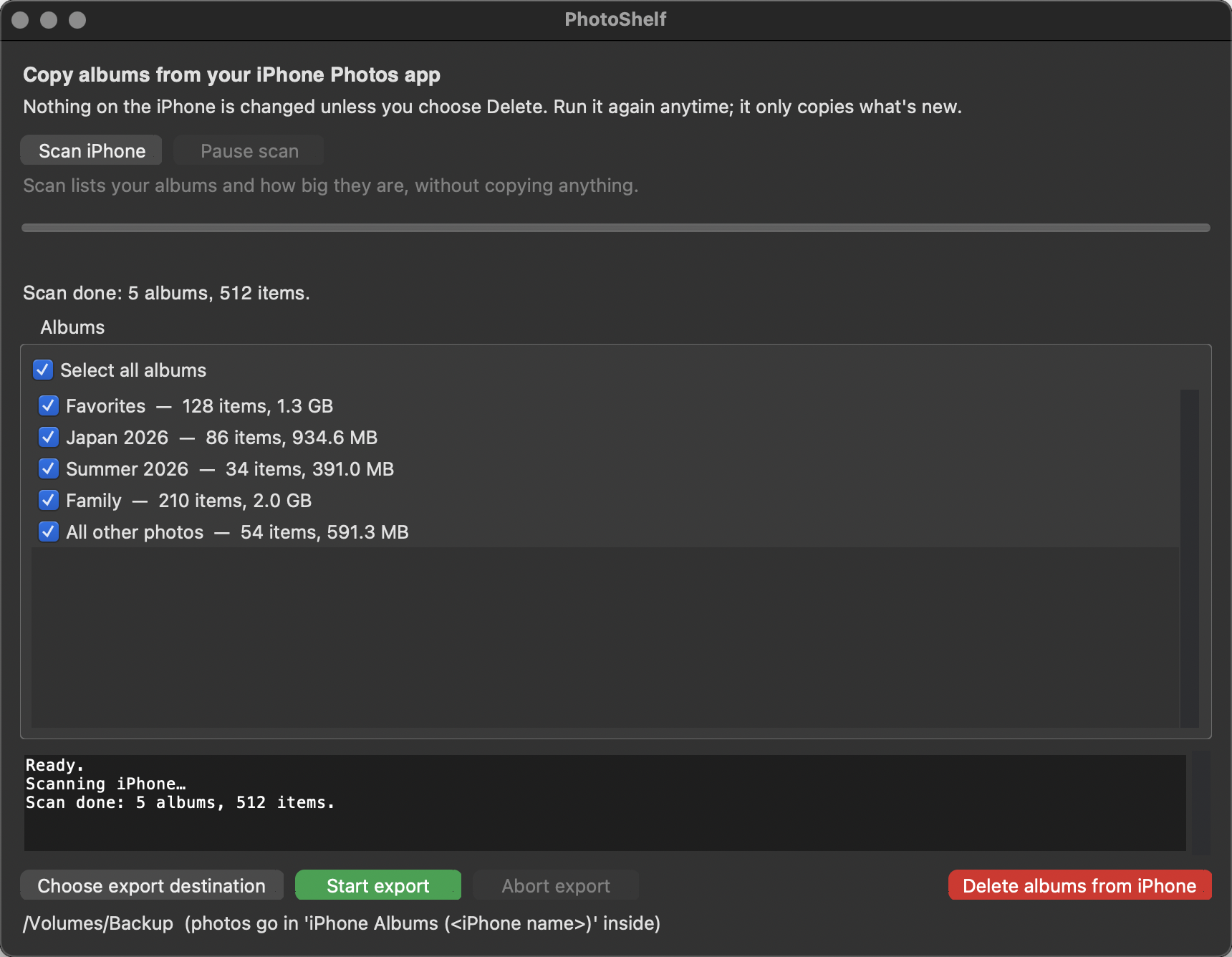
Scan lists your albums and how big they are.
Select all albums or only the ones you want to back up.
Store them on your Mac or plug in external storage.
You can pause and resume the export as needed.
Select and delete folders if you want to free up storage space.
For long copies, set iPhone Settings > Display & Brightness > Auto-Lock to Never. The Mac stays awake, but the app can't keep the iPhone unlocked.
Apple’s free tools copy photos, not albums. Other album tools cost more and require a subscription.
| Tool | Albums as folders | Price (10 Nov 2026) |
|---|---|---|
| Photos | No. Cable import: photos, not albums. | Free |
| Image Capture | No. One folder. | Free |
| iCloud | No. Albums stay in Photos, but no standalone folders. | Free to 5 GB, then paid |
| iMazing | One album at a time only. | 29.99 USD/year for one iPhone. |
| AnyTrans | Yes, per the official site. | 59.99 USD one-time or 39.99 USD/year. |
| PhotoShelf | Yes. Select any or all albums. | 9.99 euro, one time.Works with your iPad, too! |
No. Photos stay on your devices. Copied over a cable to a folder you choose. Nothing goes to Apple, iCloud, or us.
No. Copy over a cable. If some photos are not on the iPhone, download them first.
Works on any Mac (Intel or Apple Silicon) with macOS 11 Big Sur or newer. Nothing else to install. Not for Windows.
The app is not yet notarized by Apple. Right-click (or Control-click) it, choose Open, then click Open. Once is enough. On newer macOS, if there's no Open button, click Done, then go to System Settings > Privacy & Security > Open Anyway.